Welcome to yeon
yeon is a browser built for people who manage many online identities at once. Every top-level tab is its own private world — its own cookies, storage, proxy, location, and device fingerprint — so a single person can run dozens of identities side by side, and each one presents to the websites you visit as a separate, ordinary computer.
yeon runs on Windows and on Apple Silicon Macs.
What makes yeon different
- Separate everything, per identity. Cookies, local storage, cache, saved logins, proxy, time zone, and device fingerprint are all isolated to the identity that owns the tab. Open a new identity and you get a complete, self-consistent device of its own; open another and you get a different one. Nothing carries between them.
- A location that matches your proxy. When an identity uses a proxy, yeon lines up its time zone, language, and location with where that proxy actually exits — so the identity is coherent, not a US fingerprint behind a German IP.
- A real-world device per identity, on demand. Turn on Online device profiles and each identity takes on the details of a separate, genuine computer, so no two ever look alike.
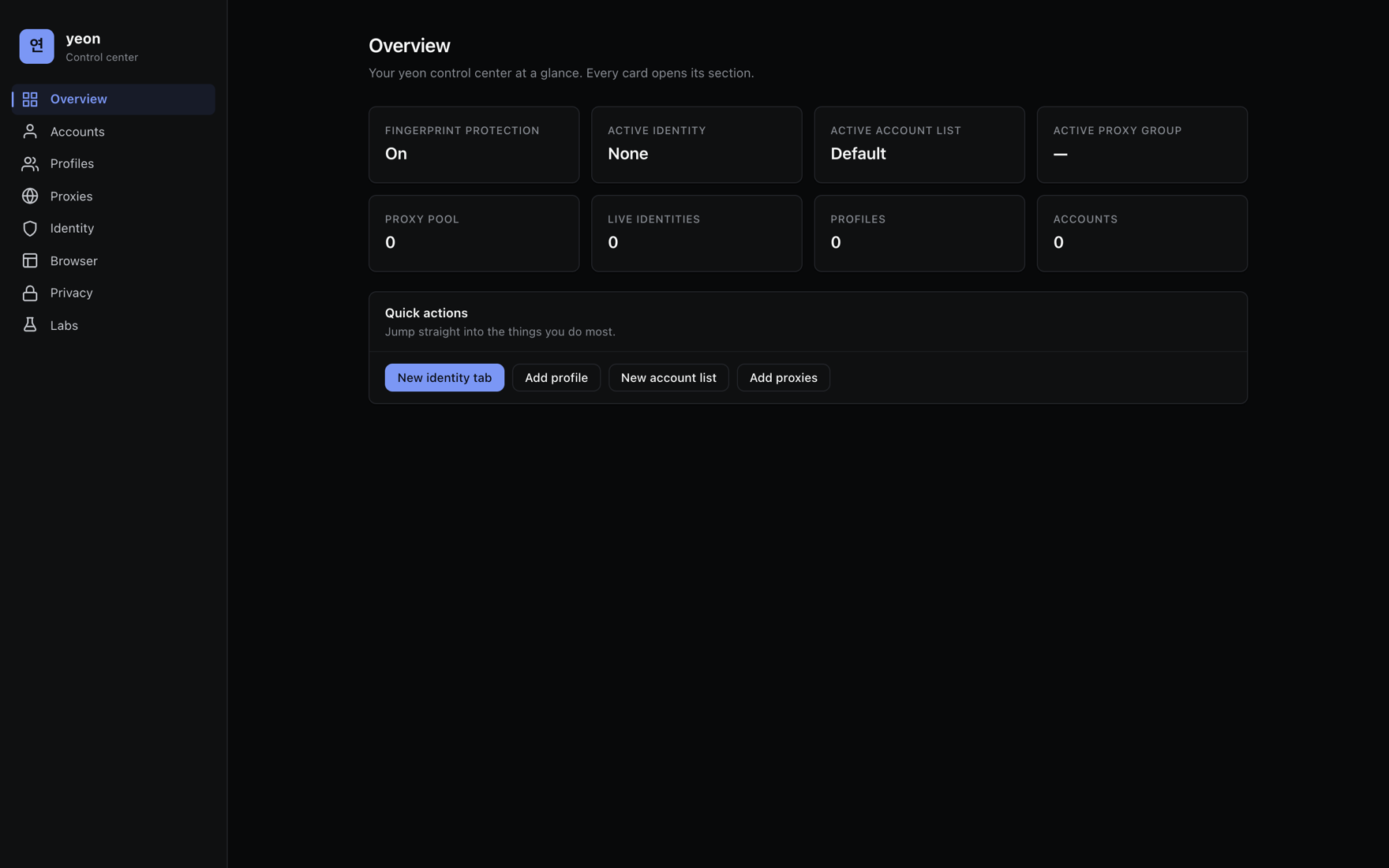
- One home for everything. The control center at
chrome://yeon-homemanages your identities, profiles, accounts, proxies, and browser settings in one themed dashboard. - Built for tickets and checkout. Autofill, one-time-code filling, live cart timers in the tab title, a Discord cart assistant, and Ticketmaster purchase history are all built in.
A quick tour
Getting around
- The control center — yeon's home dashboard at
chrome://yeon-home, where you manage identities, profiles, accounts, proxies, and browser settings.
Identities
- Identities & profiles — how identities work, what is isolated, and how to create and switch between them.
- Online device profiles — give each identity the details of a real, distinct device.
- The profile side panel — the control center for the active identity.
- Proxies & rotation — give each identity its own proxy and rotate on demand.
- Quicklink — open a link across chosen identities (and a chosen proxy) from one URL.
- Importing profiles & accounts — bulk-load personas and account logins from a spreadsheet.
Filling forms & buying tickets
- Persona autofill — fill checkout and sign-up forms with one shortcut.
- OTP autofill — pull one-time codes from email and SMS automatically.
- Tab-title live status — watch your queue position and cart timer from the tab title, even when the tab is in the background.
- Ticketmaster purchases — a running history of what you have bought.
Discord
- Cart assistant — approve or reject carts from your own Discord server.
- License bot commands — check your key and get help right from Discord.
Tools
- Cookie manager — inspect, edit, import, and export an identity's cookies.
- Global extensions — install an extension once and get it in every identity.
- Custom keybinds — remap yeon's shortcuts to whatever you like.
Get started
- Install yeon
Download the build for your platform — the Windows installer or the macOS app — install it, and launch it. Full steps are in Install & first run.
- Activate your license
yeon asks for a license key the first time you open it. See Licensing & activation for where to get a key and how activation works.
- Create your first identity
Open the side panel, add an identity, give it a proxy, and start browsing. See Identities & profiles.