Install & first run
yeon runs on Windows (x64) and on Apple Silicon Macs — the M1, M2, M3, M4 and M5 families, including Pro / Max / Ultra.
The macOS build does not run on older Intel Macs. If you are not sure which Mac you have, open the Apple menu → About This Mac; if the Chip line says "Apple M1/M2/M3/M4/M5" you are good.
1. Download yeon
Your download link comes from the yeon Discord. Join, get your license key (see Licensing & activation), and download the latest build for your platform.
You will get yeon-<version>-windows-x64-setup.exe — a normal Windows installer, and the
recommended way in. A portable .zip is also published as a fallback; it unzips to a folder of
runtime files instead of installing.
You will get a .zip. Double-click it to unzip, and you will have yeon.app.
2. Install it
- Run the installer
Double-click
yeon-<version>-windows-x64-setup.exe. This is a per-user install — it needs no administrator rights and raises no UAC prompt. - Choose the folder
The installer offers
%LOCALAPPDATA%\Programs\yeon. Keep it, or pick another folder on that page. - Finish
On the last page, leave the Launch yeon checkbox on to open the browser straight away.
The installer creates a Start Menu shortcut and a Desktop shortcut, registers yeon in
Settings → Apps so you can uninstall it from there, and registers the yeon:// link handler
that makes quicklinks open.
Installing over an existing yeon upgrades it in place.
Drag yeon.app into your Applications folder — that is where macOS expects apps to live, and it keeps yeon updating cleanly.
Then open yeon from Applications or Launchpad, or run:
open -a yeon
3. If your OS warns you
Because yeon is delivered directly to you rather than through the Microsoft Store, Windows may show "Windows protected your PC" when you run the installer. If you see it, click More info, then Run anyway.
Because yeon is delivered directly to you (not through the Mac App Store), macOS marks it as "downloaded from the internet" and may refuse to open it, saying "yeon" cannot be opened or "yeon" is damaged and can't be opened. Clear that flag once and you are done.
Open the Terminal app (find it with Spotlight — press CmdSpace and type "Terminal"), then paste this line and press Return:
xattr -dr com.apple.quarantine /Applications/yeon.app
It only removes the "quarantine" tag macOS puts on downloaded apps, so Gatekeeper stops blocking yeon. It does not change anything else on your Mac. Some builds are pre-approved (notarized) and skip this step entirely — if yeon opens on the first double-click, you can ignore this.
4. Activate your license
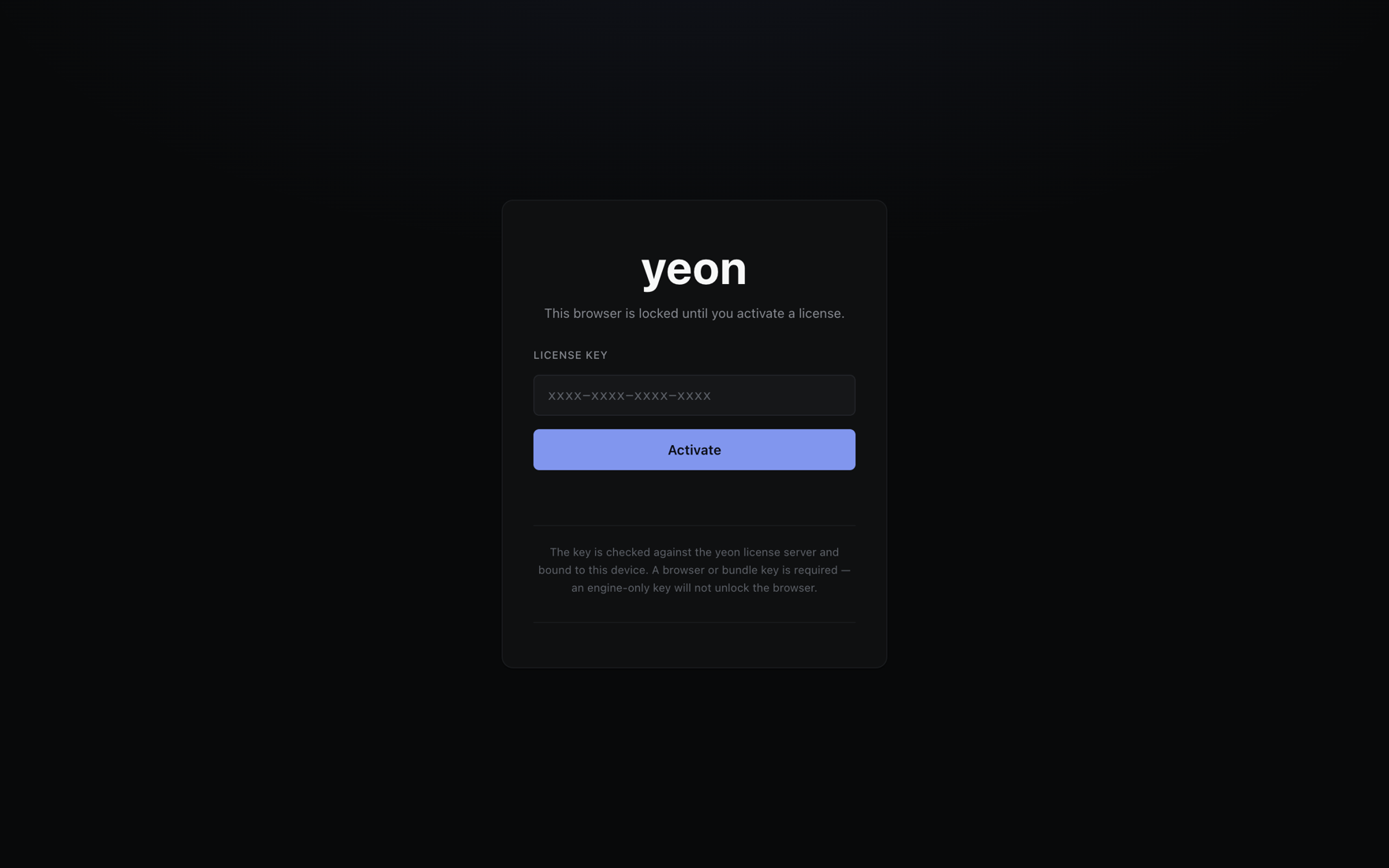
The very first time yeon opens, it shows a license screen. Paste in your key and click Activate. Once it is accepted, yeon unlocks and drops you on a fresh new-tab page.
Where keys come from, what happens if you are offline, and what each message means are on the Licensing & activation page.
To let yeon fill one-time sign-in codes for you, there is a one-time setup in Settings → yeon → Identities, where you enter your email (AYCD or IMAP) and SMS-provider keys. Everything else works without it — see OTP autofill.
Where your data lives
%LOCALAPPDATA%\yeon\User Data
~/Library/Application Support/yeon
That is a different path from the app itself, so installing or updating never touches it. Your license, your identities and their saved sessions, and your imported accounts all live there.
Keeping yeon up to date
yeon checks for updates in the background at startup and every 6 hours, and shows an in-app notice with an Update now button. The notice names the version it is offering — "yeon 0.4.70 is available", for example. Update now downloads and installs that version and restarts yeon for you; it does not just send you to a download page. Dismissing the notice snoozes it for 6 hours.
You can also update on your own schedule: open chrome://yeon-license, go to the Updates
section, and use Check for updates / Install update.
Updates are license-checked and hash-verified. On Windows the update re-runs the installer
silently — no setup pages, no prompts — or, if you are running the portable .zip build, swaps
the files in place instead. On macOS it replaces the app. Either way your license, identities,
sessions and imported accounts are untouched.
You can also update by hand — drag the new yeon.app over the old one in Applications.
Troubleshooting the install
- "Windows protected your PC"
Windows SmartScreen on a directly-delivered build. Click More info, then Run anyway.
- A quicklink doesn't open yeon
The
yeon://handler is registered by the installer. If you are running the portable.zip, install withyeon-<version>-windows-x64-setup.exeinstead.
- "yeon" cannot be opened
macOS is still quarantining the app. Re-run the
xattrcommand in step 3, making sure the path matches where you put the app (/Applications/yeon.app).- "yeon" is damaged and can’t be opened
Same quarantine flag — the
xattrcommand in step 3 fixes it. It does not mean the download is actually broken.- Nothing happens on launch
Make sure you moved the app into Applications and are not running it from inside the
.zipor the Downloads folder.
More fixes are on the Troubleshooting page.