Global extensions
Install an extension once, in any identity, and yeon adds it to every identity — the ones you have open now and every one you create later. Each identity runs its own copy, with its own isolated storage.
How to add an extension
- Open any identity
It does not matter which one. Its toolbar and extensions area work the normal way.
- Install from the Chrome Web Store
Find the extension and click Add to Chrome. Confirm any permissions it asks for.
- Let yeon spread it
yeon notices the new extension and installs it into every identity that is open, and into every identity you create from now on.
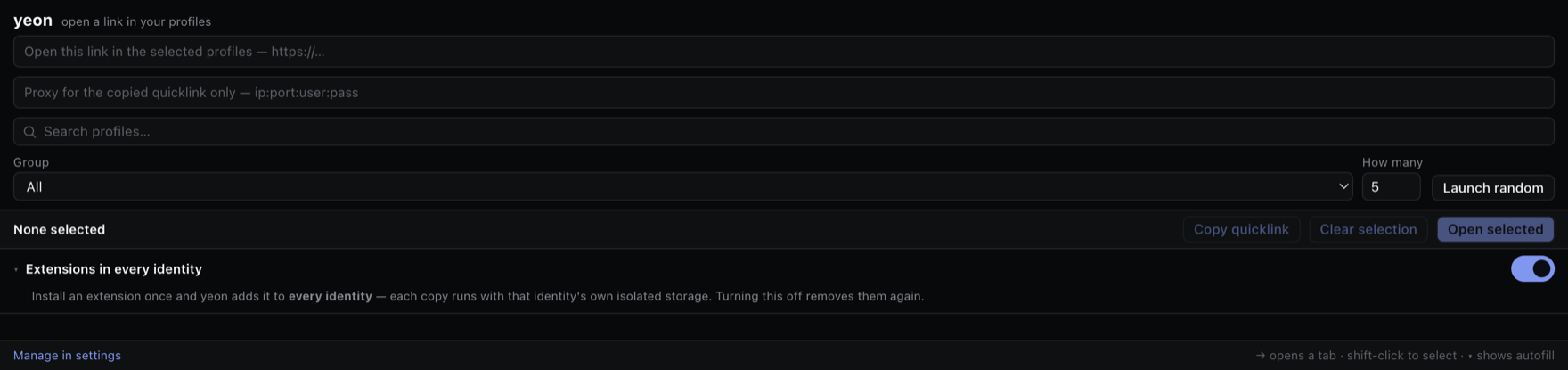
How it stays in sync
yeon keeps a single shared list of the extensions you have installed. Adding one writes it to that list and pushes it out to each identity; a brand-new identity reads the list and picks up everything on it. You do not manage the list yourself — installing and removing extensions the normal way keeps it up to date.
In each identity the extension is a normal, fully-manageable extension. It updates on its own like any other, and you can turn it on or off per identity — installed everywhere, disabled in the one identity where you do not want it.
Being installed everywhere does not mean it is signed in everywhere. Each identity keeps its own private copy with its own separate storage, exactly like cookies and logins. A password manager is available in every identity, but each identity signs into it on its own — nothing an extension remembers crosses from one identity to another.
Turning one off, or removing it
- To disable it in just one identity, turn it off there the normal way. The other identities are unaffected.
- To stop using it, uninstall it the normal way. That removes it from the identity you are in and takes it off the shared list, so yeon will not add it to any new identities. Identities that already have it installed keep it until you remove it from those too.
What can and cannot be shared
Anything you install the ordinary way — from the Chrome Web Store (and self-hosted extensions that update themselves normally) — is shared across your identities. A one-off developer extension loaded manually from a folder on your disk is not shared; it stays only in the identity where you loaded it.
Related
- Identities & profiles — why each identity is separate, and why extension data stays private per identity.
- The profile side panel — manage the active identity.
- Custom keybinds — yeon's own shortcuts, including how to change the autofill extension's shortcut.
- Troubleshooting — if an extension does not appear in a new identity.