Proxies & rotation
A proxy is what gives each identity its own place on the internet. In yeon every identity browses through its own proxy, so each one appears at a different location with a different IP — and its clock, language, and location all match that location.
Proxies are assigned per identity, never shared. Two identities never exit through the same proxy at the same time, and one identity's proxy password can never leak into another.
Giving an identity a proxy
Most proxies arrive with your accounts rather than one at a time: each account row in your
accs.csv file has a Proxy column, and that proxy becomes the proxy for the identity using the
account. See Importing profiles & accounts for how that file is set up.
A brand-new throwaway identity (any new top-level tab) takes the next proxy from your pool automatically.
Supported proxy formats
Write each proxy as a single line in one of these two shapes:
| Format | When to use |
|---|---|
host:port |
A proxy that needs no username or password. |
host:port:user:pass |
A proxy that needs a username and password. |
For example, 198.51.100.20:8000 or 198.51.100.20:8000:myuser:mypass. yeon works with the
standard HTTP/HTTPS residential proxies most people use, as well as SOCKS5 proxies. HTTP proxies
handle secure https:// sites too, so the plain host:port form is all most setups need.
When a proxy asks for its username and password, yeon answers the challenge for you in the background — you never see the "proxy login" dialog that normally interrupts you.
Switching or rotating a proxy
You can move an identity to a different exit at any time without losing your place. Cookies, storage, cache, and the logged-in session are all kept; only the exit IP changes. You stay signed in and keep your spot in a queue.
- Open the side panel on the identity
With the identity's tab in front, open the side panel. The Proxy card shows the current exit.
- Click Switch
One click moves the identity to a different random proxy from its group. In-flight connections to the old exit are dropped and re-dialed through the new one.
You can also right-click an identity's tab and choose Switch proxy. There is no keyboard shortcut for it — the rebindable shortcuts are listed on Custom keybinds.
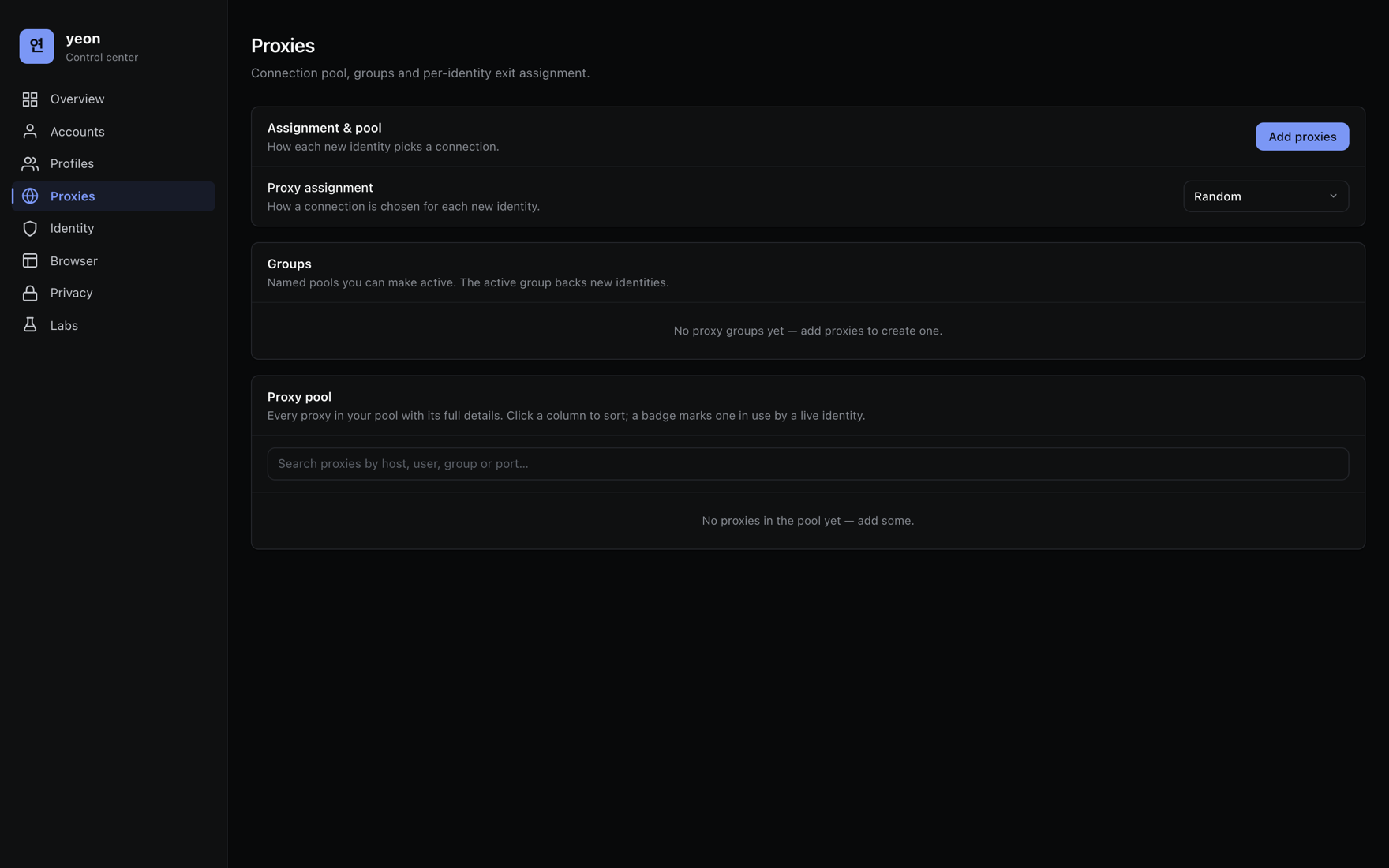
A switch always picks a different proxy, and it picks from the identity's own proxy group — so if you have grouped your proxies (for example, all US residential together), rotating keeps the identity in the same kind of location.
An account keeps its own proxy
If an account carries a Proxy column, that proxy is the identity's exit every time you launch
it — nothing rotates it on its own. It changes only when you ask: edit the account's Proxy field,
or press Switch in the side panel.
Your location follows the proxy
A Berlin exit is only coherent if the rest of the identity agrees — a browser still reporting New York contradicts its own IP. So whenever an identity gets a proxy, or you switch it, yeon checks where that proxy actually comes out and lines the identity up to match:
- Time zone is set to the proxy's region, so the clock is right.
- Language and locale match the region.
- Location (the position a site can request) matches the region.
The result is a coherent identity: a German exit looks like a German visitor, top to bottom — not a US computer wearing a German IP. This happens automatically on every switch; there is nothing to set.
Activation and license checks go out directly, not through any identity's proxy — so they never spend your proxy data and a site you are visiting can never see them. More on Licensing & activation.
Related pages
- Identities & profiles — what a proxy is attached to.
- Importing profiles & accounts — where the Proxy column lives.
- The profile side panel — where the Switch button lives.