Quicklink
A quicklink is a single link that opens a page across the identities you choose — optionally
forcing a specific proxy — all at once. It is an ordinary yeon://… URL, so you can open it from the
address bar, save it as a bookmark, or fire it from another app or a script.
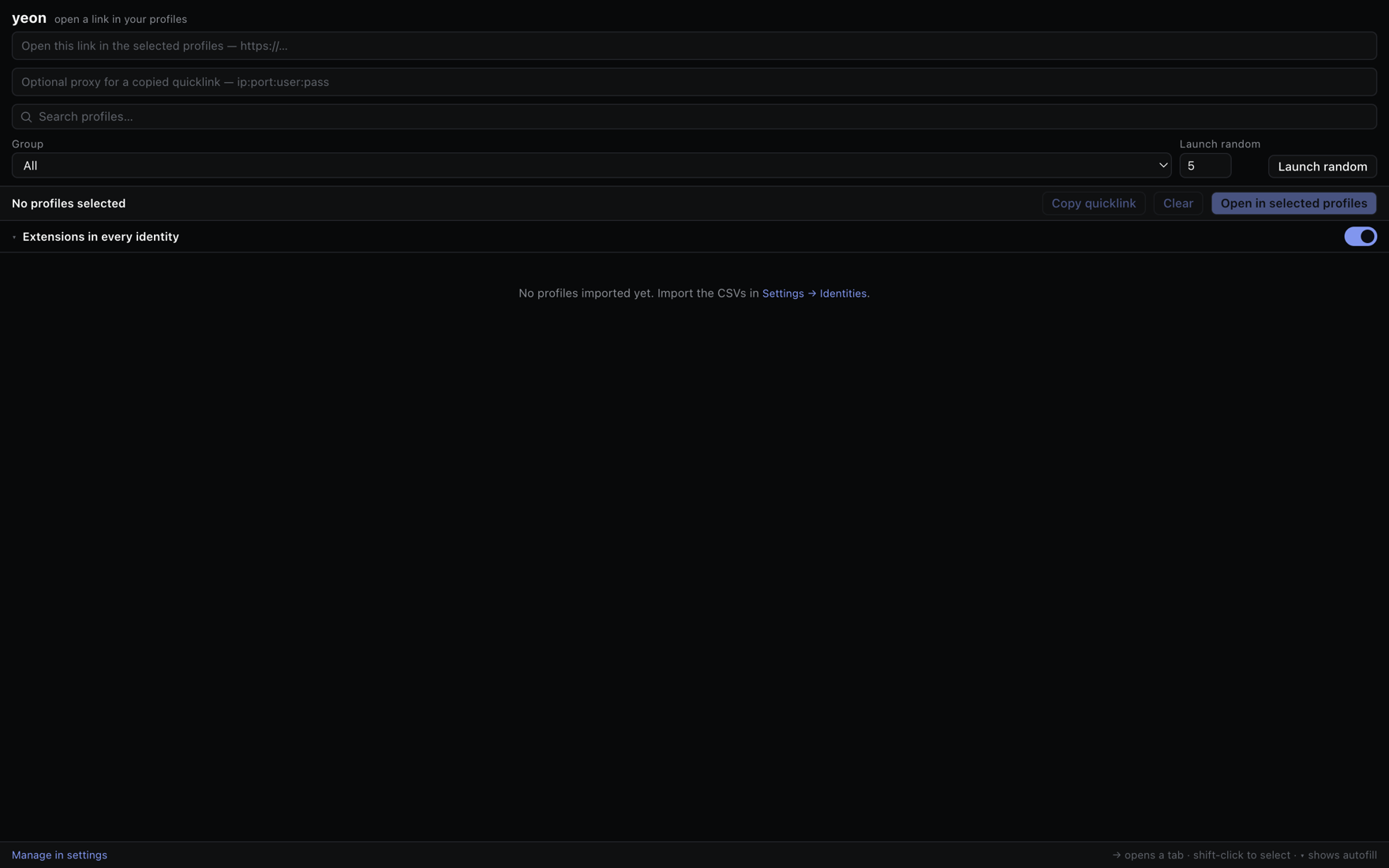
The easy way — build one in the launcher
The launcher composes one for you:
- Open the launcher
Open the profile side panel on a new-tab page, or type
chrome://yeon-launcherinto the address bar. - Paste a link and pick your profiles
Put the URL in the "Open this link in the selected profiles" box, then select the profiles you want — CmdCtrl-click to toggle, Shift-click for a range.
- Optionally set a proxy
Fill the "Optional proxy for a copied quicklink" box (as
ip:port:user:pass) if you want every opened tab forced through one specific proxy. Leave it blank to let each profile use its own. - Click Copy quicklink
The Copy quicklink button puts the finished
yeon://quicklink…URL on your clipboard, ready to paste into a bookmark, a note, or a message.
The URL format
If you'd rather write one yourself, a quicklink looks like this:
yeon://quicklink?profile=<name>&link=<url>&proxy=<ip:port:user:pass>
- profile
One or more profile names, comma-separated. yeon opens one identity tab per profile, each in its own separate identity.
- link
The URL to open. Only ordinary web links (
http/https) are accepted; a bare address getshttps://added for you.- proxy
Optional. An exit as
ip:port:user:pass. If given, every opened tab goes through this proxy; if left off, each tab uses whatever proxy that profile already has.
Examples
# open one profile on a link, using its own proxy
yeon://quicklink?profile=TM-Main&link=https://example.com

# open three profiles on the same link, all forced through one proxy
yeon://quicklink?profile=TM-Main,AXS-01,Presale-07&link=https://example.com&proxy=203.0.113.7:20680:user:pass
When a quicklink opens several profiles, yeon spaces the tabs out slightly so they don't all load at the same instant — the same stagger the launcher uses.
Where you can open a quicklink
- In yeon
Paste it into the address bar, or save it as a bookmark and click it. This works on every build.
- From another app
Open it from outside yeon — a note, a chat message, or a script. This uses your system's link handler, which the installed yeon app registers for you.
From a terminal:
start "" "yeon://quicklink?profile=TM-Main&link=https://example.com"
open "yeon://quicklink?profile=TM-Main&link=https://example.com"
A quicklink only acts when you open it — from the address bar, a bookmark, or another app. A web
page can never trigger one: a link or redirect on a site that points at yeon://quicklink is ignored,
so no website can silently spin up identities in your browser. Every quicklink is also checked before it
runs — the profile has to exist and the link has to be an ordinary web address — and anything invalid
simply does nothing.
Related
- The profile side panel — the launcher, where Copy quicklink lives.
- Identities & profiles — what each opened tab becomes.
- Proxies & rotation — the proxy a quicklink can force.