Cookie manager
Every yeon identity keeps its own private set of cookies — that is a big part of what keeps your identities from looking "linked" (see Identities & profiles). The cookie manager is the tool that lets you look inside that private set: inspect what a site has stored, copy a value, add, edit or delete a single cookie, and export or import cookies as JSON.
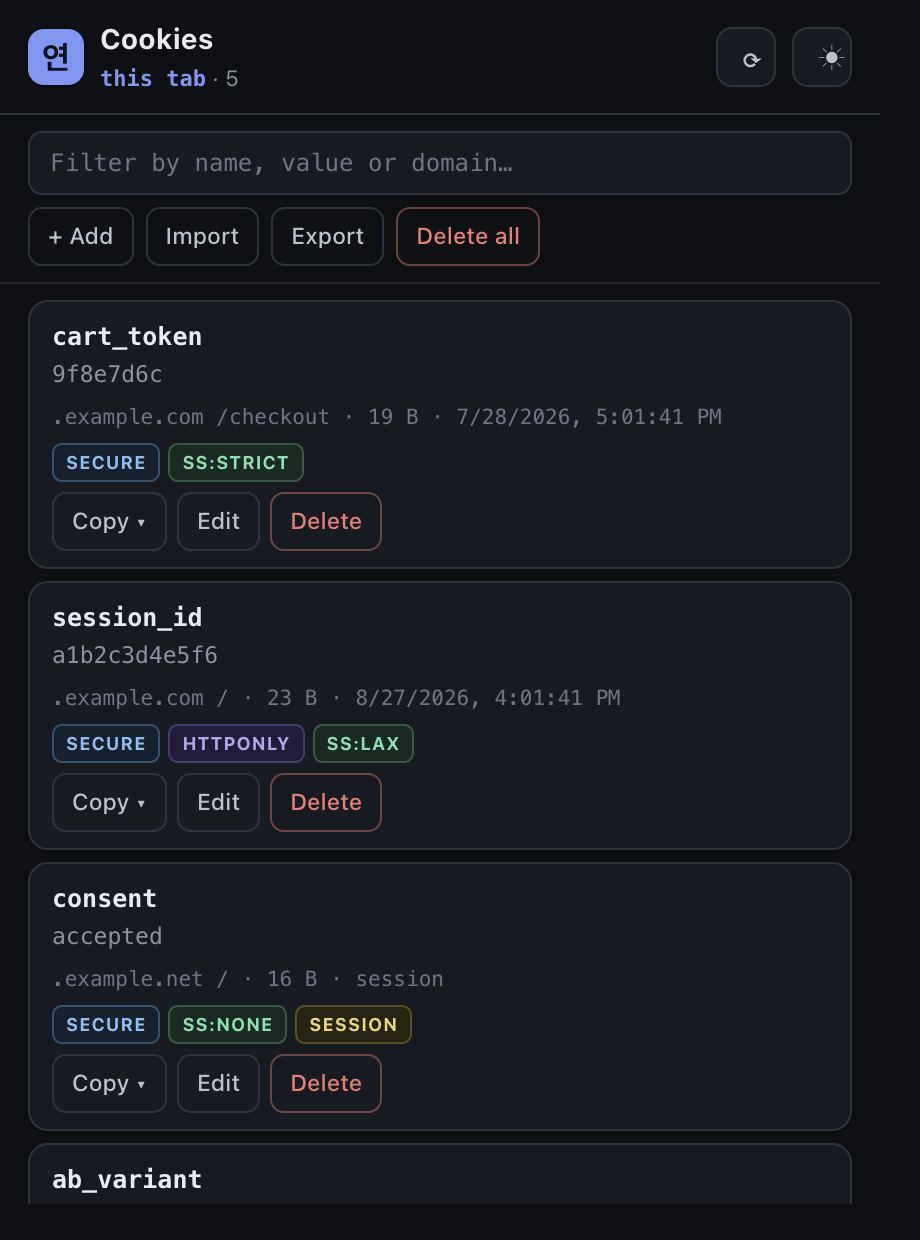
Opening the cookie manager
Click the cookie manager icon in the toolbar — yeon pins it there for you. The panel opens as a popover over the tab you clicked from, and it always works on that tab's cookies.
The cookie manager works on the cookies of the active identity — the one whose tab you opened it from. Each identity is a genuinely separate cookie store, so opening the panel from a different identity's tab shows you that identity's cookies instead. The panel only ever reads and writes the store of the tab it was opened from; there is no way to point it at another identity.
What you are looking at
The heading tells you the scope, followed by a live count of the cookies listed.
- On an identity tab, it reads this tab — the whole cookie store for that identity.
- On an ordinary tab, it reads the site's domain and shows just that site's cookies. A small button next to the heading switches between All cookies and This site.
Use the ⟳ button to re-read after a page changes, and the ☾ / ☀ button to switch the panel between light and dark. The Filter box narrows a long list by name, value, or domain — while a filter is active the count reads as shown / total.
What each cookie shows
Every cookie is one card. At a glance you can read its name, a preview of its value, and a meta line with its domain and path, its size in bytes, and when it expires. Small coloured chips flag the cookie's important properties:
- Secure — only sent over an encrypted (
https) connection. - HttpOnly — hidden from page scripts (typical of login/session cookies).
- Host — locked to exactly one host, not its subdomains.
- SS:Lax / SS:Strict / SS:None — the cookie's SameSite mode; how it behaves across sites. SS:— means the site did not specify one.
- Session — disappears when the browser session ends (no fixed expiry).
- Expired — past its expiry date.
Inspect and copy
- Click a cookie's value to copy it straight to your clipboard.
- Use the card's Copy ▾ menu to copy the value, the
name=valuepair, or the full cookie as JSON. - Export (top toolbar) copies every cookie currently listed as one JSON array. Filter the list first and Export copies only what the filter left on screen.
The JSON the manager copies is a standard, widely-used cookie shape — the same kind other cookie tools read and write — so you can hand it to another tool, or keep it as a backup, and bring it back later with Import.
Import cookies
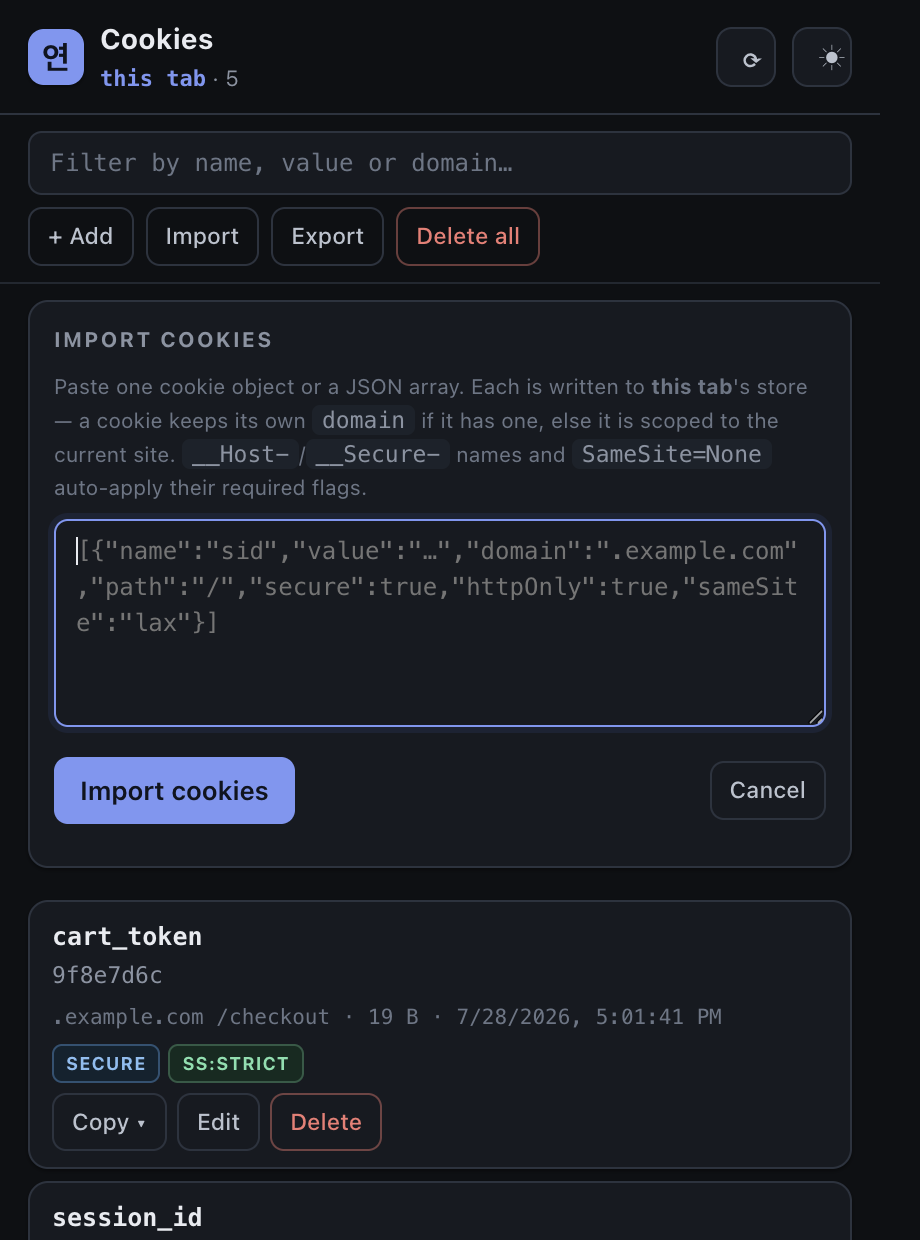
To bring cookies in — from another cookie tool, or from JSON you exported earlier — use Import in the top toolbar. It opens an Import cookies panel where you paste your cookies and click Import cookies.
- Paste one cookie or a whole list. The box accepts a single cookie object or a JSON array of cookies — the same standard shape other cookie tools export.
- Domains are handled for you. Each cookie keeps its own domain if it has one; if it doesn't, it lands
on the current site. Any flag a cookie needs to be accepted — for a
__Host-or__Secure-name, or aSameSite=Nonecookie — is turned on automatically.
Every imported cookie is written into this tab's cookie store, so it belongs to the identity you are on. When it finishes, the panel reports how many cookies landed and notes any flag it had to adjust.
Edit or add a cookie
Click Edit on any card to change its name, value, domain, path, SameSite mode, expiry, or its HttpOnly / Secure / Host-only flags. Tick Session (no expiry) to make the cookie last only for the session, or untick it to set a real expiry date and time.
The + Add button (top toolbar) opens the same form with blank fields so you can create a cookie from scratch.
Some cookies have strict requirements — for example a name beginning with __Host- or __Secure-, or
a SameSite=None cookie, must be marked Secure to be accepted at all. When you save, the manager
turns on whatever those rules require and tells you what it adjusted, so your edit actually sticks.
A leading dot on the Domain field makes it a domain cookie that covers subdomains; no dot — or ticking Host-only — keeps it on that exact host.
Deleting cookies
Use Delete on a card to remove one cookie, or Delete all in the top toolbar to clear everything currently listed. Delete all respects the filter — whatever is on screen is what goes — and asks you to confirm first.
Cookies are what keep you signed in. Deleting a login or session cookie will usually sign that identity out of the site — expected, but worth knowing before you clear one.
Carrying a session between identities
Because each identity is a separate cookie store, moving a signed-in session from one identity to another is a two-step, manual job — export from the first, import into the second. The panel cannot reach across identities on its own, so you drive both halves yourself.
- Export from the source identity
Open a tab in the identity you are copying from, open the cookie manager, and filter down to the site's cookies. Click Export to copy them to your clipboard as JSON.
- Open a tab in the destination identity
Open the same site in the identity you want to copy into (see Identities & profiles). The cookie manager needs a tab there, because it only ever writes to the store of the tab it is opened from.
- Import into the destination
With that tab active, open the cookie manager, click Import, paste the JSON, and click Import cookies. Reload the page and the destination identity should recognise you as signed in.
Importing does not touch the source identity — it stays signed in too. If you want a true move, go back to the source and delete the cookies there once the destination is working.
A cookie is only part of what keeps you signed in. Sites that tie a session to other stored state, or that re-check the device or network behind it, may simply ask the destination identity to sign in again. Treat this as a convenience, not a guarantee.
Common uses
- Clear a bad cookie
A stale session or a broken consent cookie can wedge a site. Find it by name, Delete just that one, and reload — cleaner than clearing everything and losing your other logins.
- Grab a value to inspect
Click a value (or use Copy value) to pull a token out for a quick look, without disturbing anything else on the page.
- Back up a working session
Export an identity's cookies for a site and keep the JSON. If something later breaks the session, Import the backup instead of signing in from scratch.
Related
- Identities & profiles — why each identity has its own cookies.
- The profile side panel — the control center for the active identity.
- Proxies & rotation — the other half of keeping identities separate.
- Troubleshooting — if an imported session does not take, or identities look linked.