OTP autofill
When a site texts or emails a one-time sign-in code, yeon reads it and types it into the code box the instant it arrives. It is built for the six-digit sign-in codes ticketing sites send.
yeon can pull that code from two kinds of source:
- Email codes — read either from an AYCD inbox or straight from a mailbox over IMAP, depending on how the account is set up.
- SMS codes — read from the SMS provider the account's phone number is with.
Which one a code arrives on is decided by how the account was set up, not by yeon — so set up whichever sources your identities use, and both if they are split across the two. Each identity's code source is set in the profile side panel.
Set up your code sources (one-time)
Open Settings → yeon → Identities and find the "API keys & Email (IMAP)" card. It has three groups — fill in the ones you use. These keys and logins are yours alone: yeon stores them locally on your machine and never sends them to a website.
- Email sign-in codes (AYCD)
Paste your AYCD Inbox key and click Save key. This lets yeon read email codes that arrive through your AYCD inbox.
- IMAP mailbox
Enter the mailbox Host, Port, User, Folder, and Password. This lets yeon read email codes directly from a mailbox — used for accounts set up to receive their code in a specific inbox rather than through AYCD.
- SMS provider key
Paste the API key for whichever SMS provider your accounts use, next to that provider's name. yeon supports SeatHeroes, SMSGateway, TextTrove, TextChest, Quick-Text, and SMSPass.
Click Save when you are done. There is nothing to restart — the keys take effect right away.
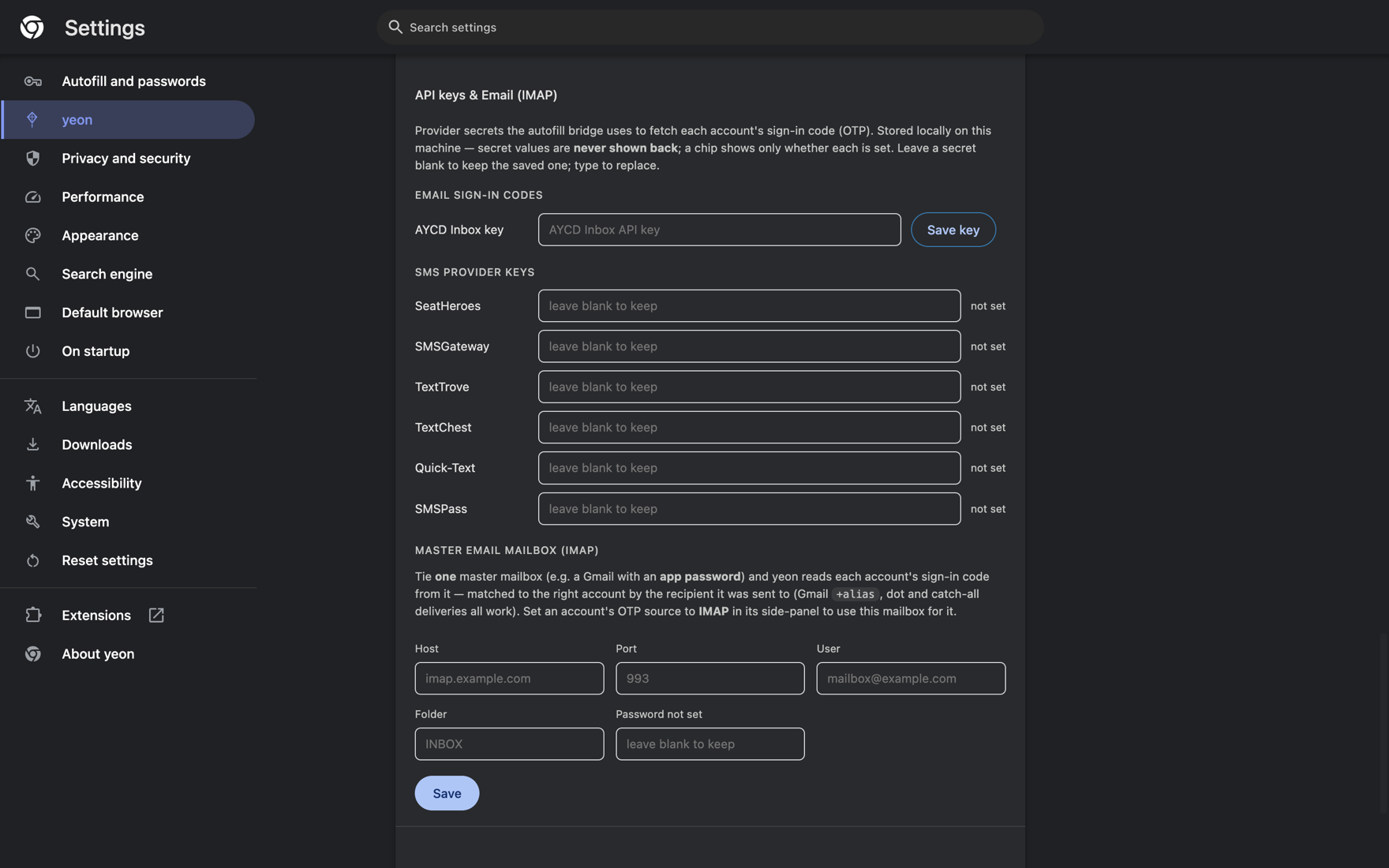
yeon never displays a saved secret back to you. Each field shows a small chip — ● set or not set — so you can tell at a glance which are filled in. Leaving a field blank keeps whatever you saved before; type a new value to replace it.
Email codes
Use this when an identity receives its sign-in code by email. With your AYCD Inbox key, your IMAP mailbox details, or both saved in the card above:
- Sign in as usual
Enter the account and continue to the screen that asks for the emailed code. yeon starts watching the identity's inbox the moment that code box appears.
- Let yeon fill the code
As soon as the code email arrives, yeon reads the six-digit code out of it and types it into the box.
SMS codes
Use this when an identity receives its sign-in code by text message — Ticketmaster sign-in codes among them. yeon reads the text through the SMS provider the account's number is with, which needs two things: the provider's API key (saved in the card above) and a phone number for each identity.
- Give the identity its phone number
Open the profile side panel, set the identity's code source, and enter the phone number its texts go to. You can also load the number in bulk from your spreadsheet when you import profiles, so every identity is ready without setting it one by one.
- Let yeon fill the code
Continue to the sign-in-code screen. When the text arrives, yeon reads the code from your SMS provider and types it into the box.
How the fill happens
Whichever source you use, the flow is the same:
- Nothing to arm. yeon starts watching for the code the instant the code box appears on the page — usually before the message has landed. There is no button to press first.
- It types the code in for you. When the code arrives, yeon enters it into the box the way the page expects, so the page's own validation accepts it and the Continue button enables.
- You press Continue. By default yeon fills the code and leaves the final click to you, so you stay in control of the submit.
Where you configure things — at a glance
| Setting | Where | What it enables |
|---|---|---|
| AYCD Inbox key | the "API keys & Email (IMAP)" card | Email codes for accounts routed through AYCD |
| IMAP mailbox — Host / Port / User / Folder / Password | the same card | Email codes read straight from a mailbox |
| SMS provider API key | the same card | SMS codes |
| Phone number | per identity in the side panel, or in bulk when you import profiles | SMS codes |
Check the basics in Settings → yeon → Identities → "API keys & Email (IMAP)": the key for your source shows ● set — the AYCD Inbox key or IMAP mailbox for email, your SMS provider's API key for text. For SMS, make sure the identity has a phone number set. For email, the account must be set up to receive its code through AYCD or the IMAP mailbox you entered.