Licensing & activation
yeon is a licensed product: it needs a valid key to run.
Where to get a key
License keys are handed out through the yeon Discord. Join, and follow the instructions there to get your key. If you are joining a team, your key arrives in a Discord DM, or your team's manager passes it to you.
There are two ways to look at a key you already own, both without opening the browser:
/statuswith the license bot in Discord — see License bot commands.- The web dashboard at yeon.sh/dashboard — you sign in there with the license key itself. It shows the same details, plus Reset devices and, if you manage a team, every seat's key.
Make sure your key is licensed for the yeon browser. Some keys are issued only for other yeon products and will not unlock the browser — if you paste one in, you will see a "not licensed for the yeon browser" message. Ask in Discord if you are unsure which key you have.
Activating
- Open yeon
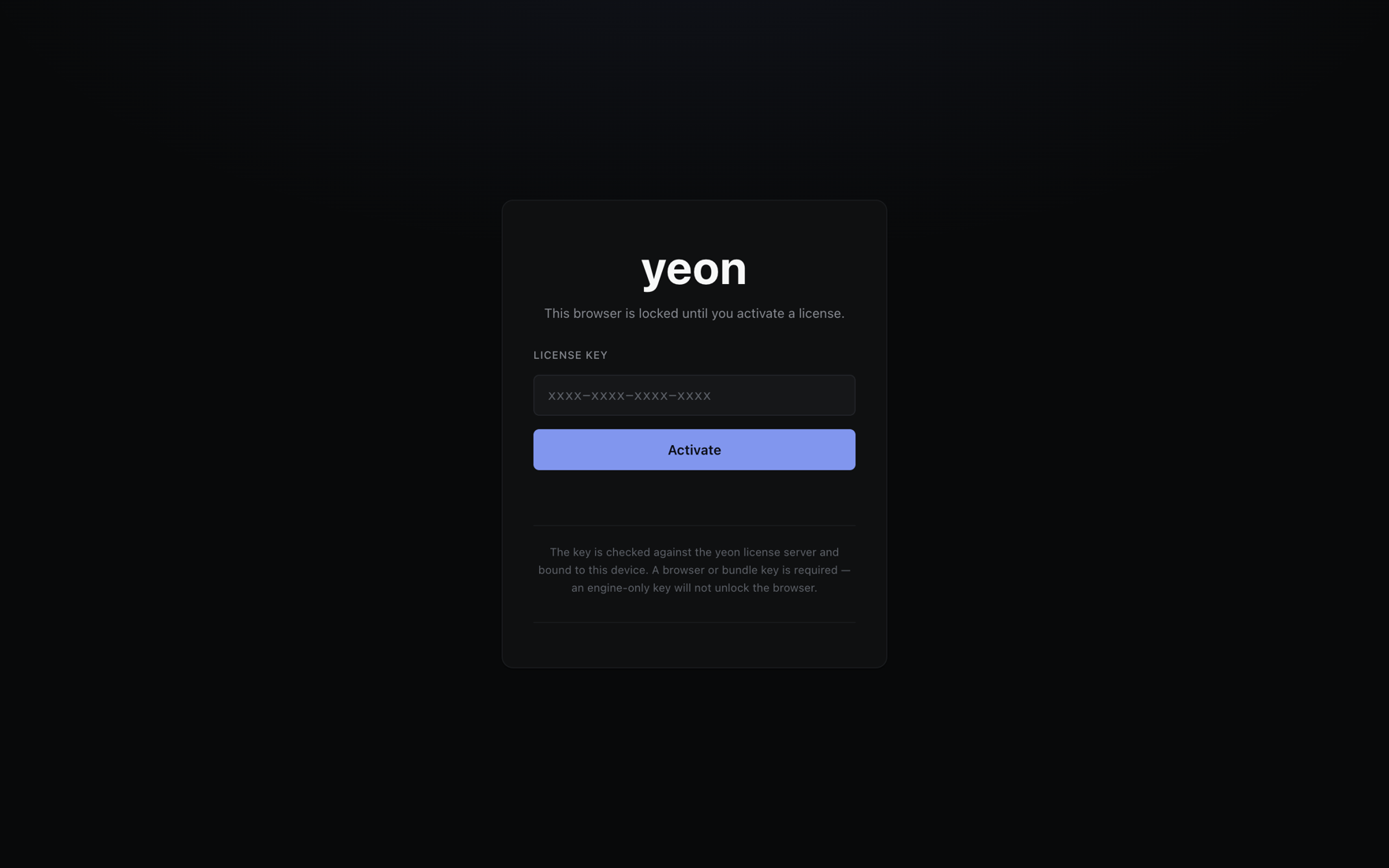
The first time you launch, yeon shows its activation screen. You cannot browse until a valid key is entered — this is expected.
- Paste your key and click Activate
yeon checks the key with the license server and, if it is valid, unlocks immediately and opens a new tab.
Your key has to be checked with the server the first time you activate it, so you need an internet connection for that initial unlock. After that, yeon can keep working offline for a while (see below).
How your key stays valid
Devices
A key works on a limited number of machines. Each computer you activate on takes one slot, so if you plan to run yeon on several computers, make sure your key allows enough devices. yeon counts a machine once — the browser and any other yeon apps on the same computer share a single device slot, so they do not double-count against your limit.
If you hit the limit, you will see a device limit message. You can clear it yourself: open the web dashboard, sign in with your key, and press Reset devices. That unbinds every machine from the license at once — then activate on the computer you actually want and it takes a slot again.
Reset devices is rate-limited, so leave a moment between resets, and it does not work on a revoked key. If you want a bigger device count rather than a reset, ask in Discord.
Working offline
Once you have activated online, yeon keeps a small local record so it can keep running even if your internet drops or the server is briefly unreachable. This offline window lasts up to 7 days from the last successful check. Open yeon online again within that window and the clock resets.
The offline window is protected against clock changes — setting your computer's date backwards will not extend it. If your grace period runs out, just reconnect to the internet and yeon re-checks your key automatically.
Your license check is private
yeon verifies your key directly and securely. The check never travels through an identity's proxy, so it does not use up any of your proxy data and a website you are visiting can never see or interfere with it.
What the messages mean
If activation is refused, the screen tells you why:
- Invalid
The key was not recognized. Double-check for typos or extra spaces, and confirm you copied the whole key.
- Expired
The key was valid but its time is up. Renew it in Discord.
- Revoked
The key has been turned off. If you believe this is a mistake, reach out in Discord.
- Device limit
The key is already active on the maximum number of machines. Press Reset devices in the web dashboard to unbind them all, then activate again on the computer you want.
- Not licensed for the yeon browser
This key is for a different yeon product. You need a browser (or bundle) key.
- Offline
yeon could not reach the license server to activate. Check your connection and try again — the first activation of a key must happen online.
Moving to a new computer
Install yeon on the new machine (Install & first run) and activate with the same key. The new computer uses one of your key's device slots.
If you are retiring the old machine and have run out of slots, you do not need to ask anyone. Open the web dashboard, sign in with your key, and press Reset devices — every machine is unbound. Then activate on the new computer, and that one takes a slot.
Teams & seats
A team is a set of licenses that belong together. A team holds between 4 and 20 seats, and each seat is an ordinary license key: same plan, same product, same renewal date, and the same device limit as the rest of the team.
One seat on the team is the manager. A manager can see every seat's full license key, with a
copy button — in the web dashboard and with /status in Discord. That is
how keys reach the people who need them. Everyone else on the team sees only their own key, and there
is no way to ask for another team's list.
Seats are added by the person who runs yeon, with the /team-add-seat command. A new seat inherits
the team's plan, product, renewal date and device limit, and the key is DM'd to the new member. Twenty
seats is the hard cap. Managers cannot add seats themselves, so if your team needs another one, ask
in the yeon Discord.
The dashboard is read-only where seats are concerned: issuing, adding and revoking them stays with the yeon owner through the Discord bot. A small number of older seats show not stored instead of a key — ask in Discord to have that seat re-issued and the key becomes readable. Full details are on License bot commands.
Use the /status command with the Discord license bot to see whether a key is valid, when
it expires, how many devices it is using, and your own full license key — without opening the
browser. See License bot commands.