The control center
The control center is yeon's home dashboard — one place to manage your identities, profiles,
accounts, proxies, and browser settings. It opens when you start yeon and any time you click the
Home button, and you can always reach it by typing chrome://yeon-home into the address bar.
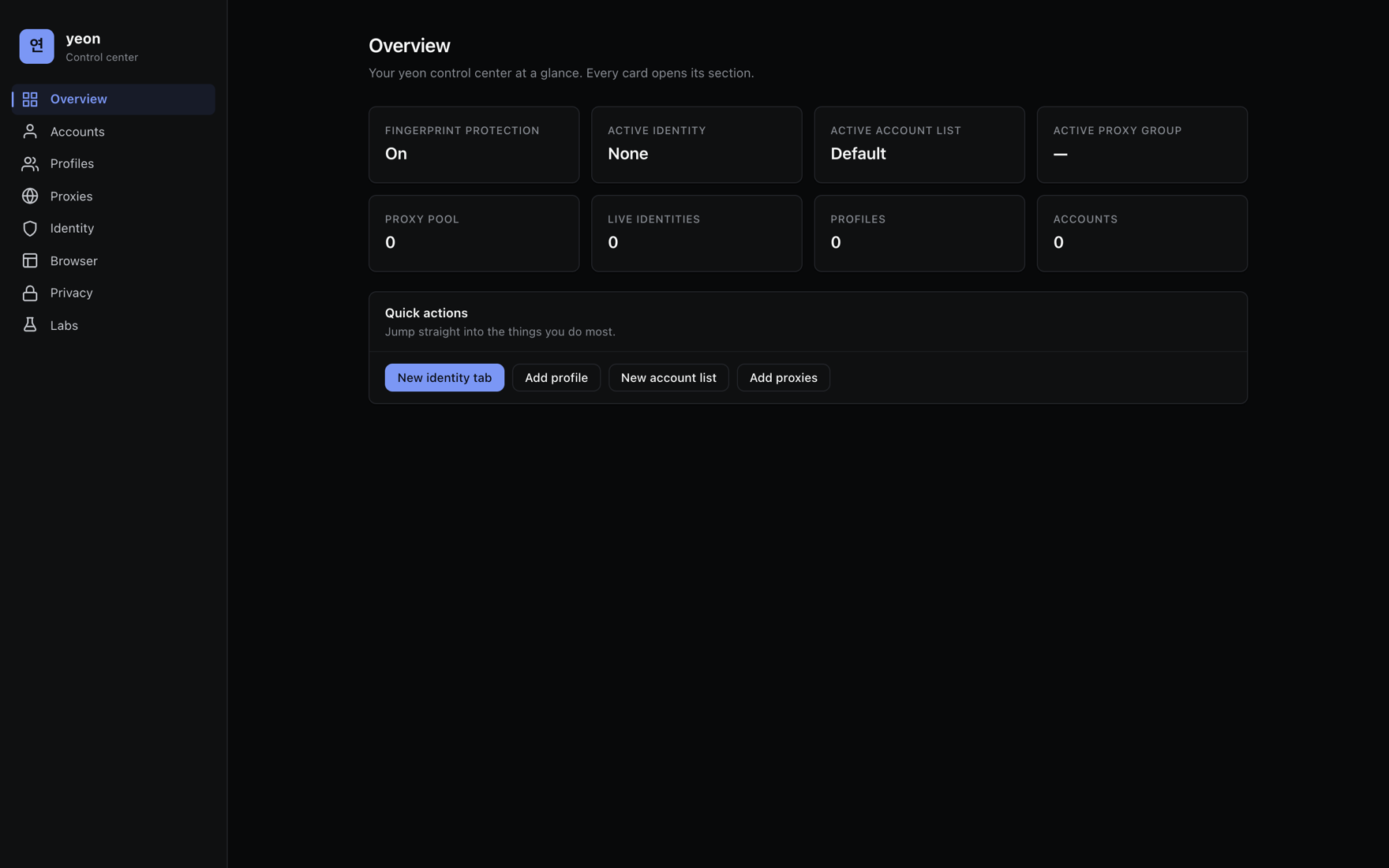
Down the left is a fixed sidebar; clicking an item switches the main area to that section. Here is each one.
Overview
The landing section. A row of status cards shows whether fingerprint protection is on, which identity is active, your active account list and proxy group, and how many proxies, profiles, accounts, and live identities you have. Each card opens its section.
Underneath, Quick actions are shortcuts to the things you do most: open a new identity tab, add a profile, start a new account list, or add proxies.
Profiles
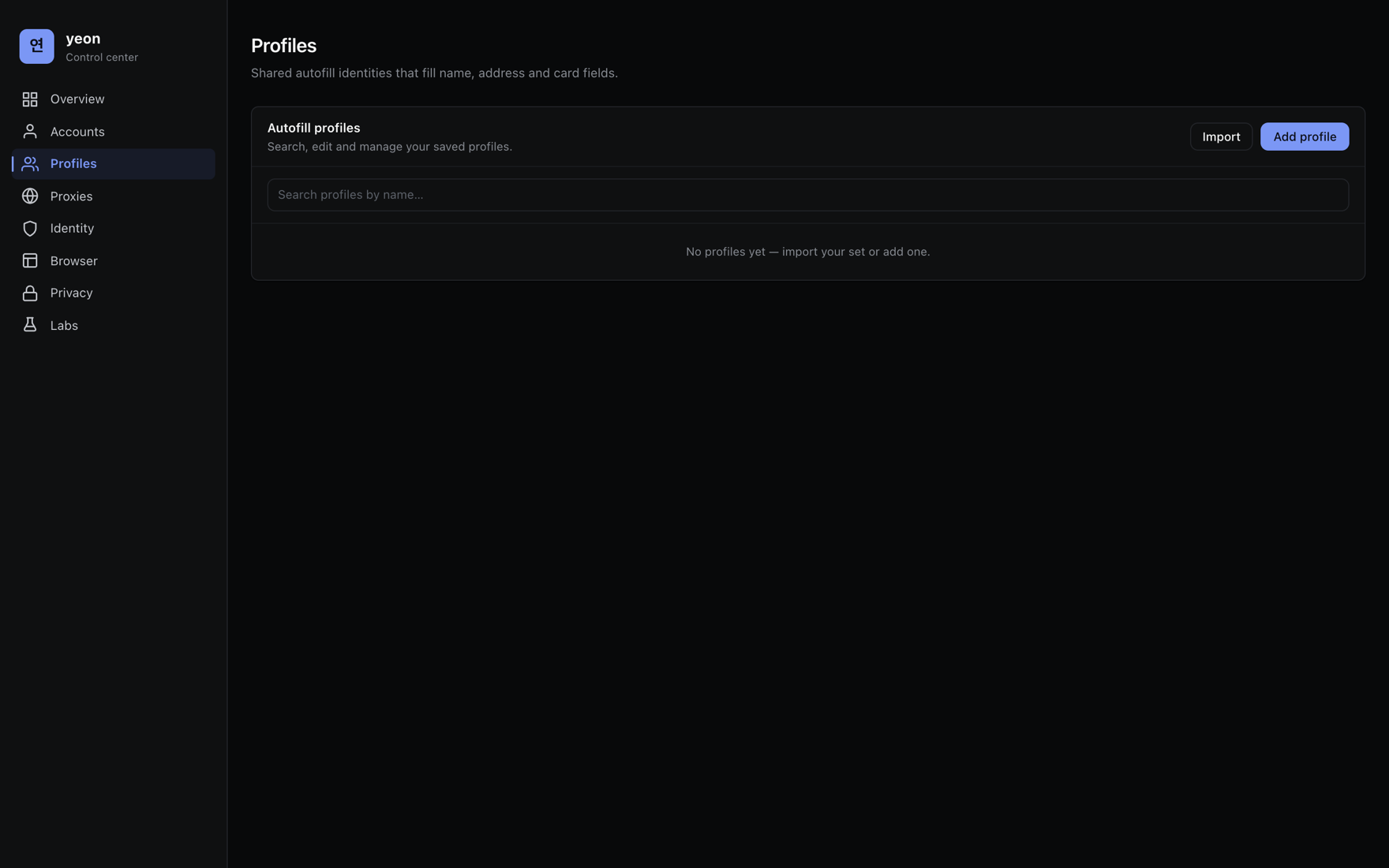
Your profiles are the autofill identities — the name, address, and card details that get typed into forms. This section is a searchable, sortable table of every profile you have. Add one at a time with the form, or Import a spreadsheet to load a whole batch at once; both feed the same list. Each row has Edit, Delete, and Clear cookies.
Full details on the spreadsheet format are on Importing profiles & accounts.
Accounts
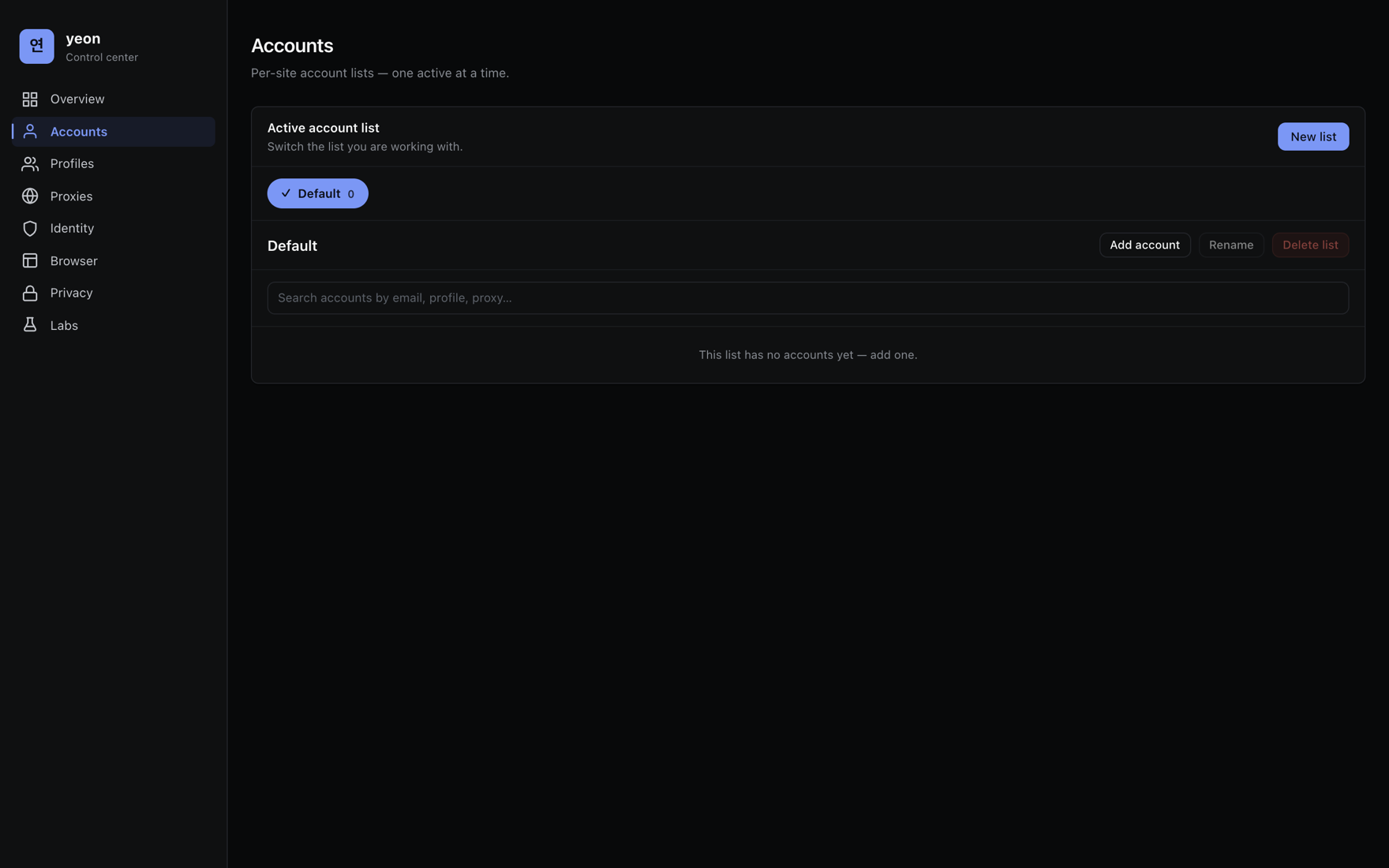
Your accounts are the per-site logins, grouped into lists, with one list active at a time. Import once, then flip the active list to match the site you are working. Each list is an editable table: add, edit, or remove rows, and create, rename, or delete whole lists.
Proxies
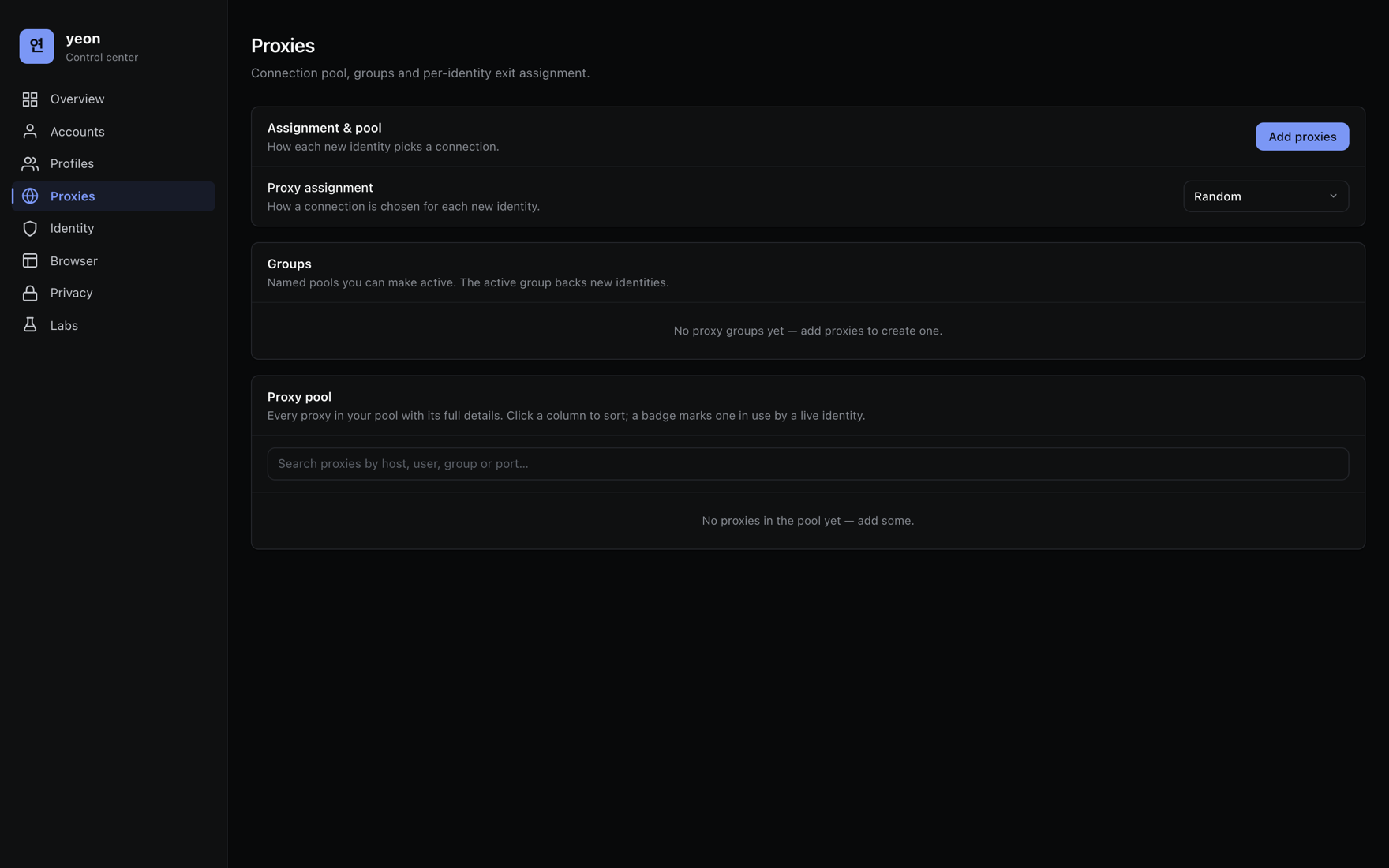
Your whole proxy pool in one table — every proxy with its host, port, user, group, and whether it is in use — sortable by any column, with the password hidden behind a reveal toggle. Add proxies by pasting a list, sort them into groups, choose how each new identity picks one (random, or in order), and set which group is active.
Everything about proxies — formats, rotation, and locking — is on Proxies & rotation.
Identity
The Identity section controls the device each identity presents to websites. The headline setting here is Online device profiles, which draws every identity's device details from a real, distinct computer. It is covered in full on its own page: Online device profiles.
Browser
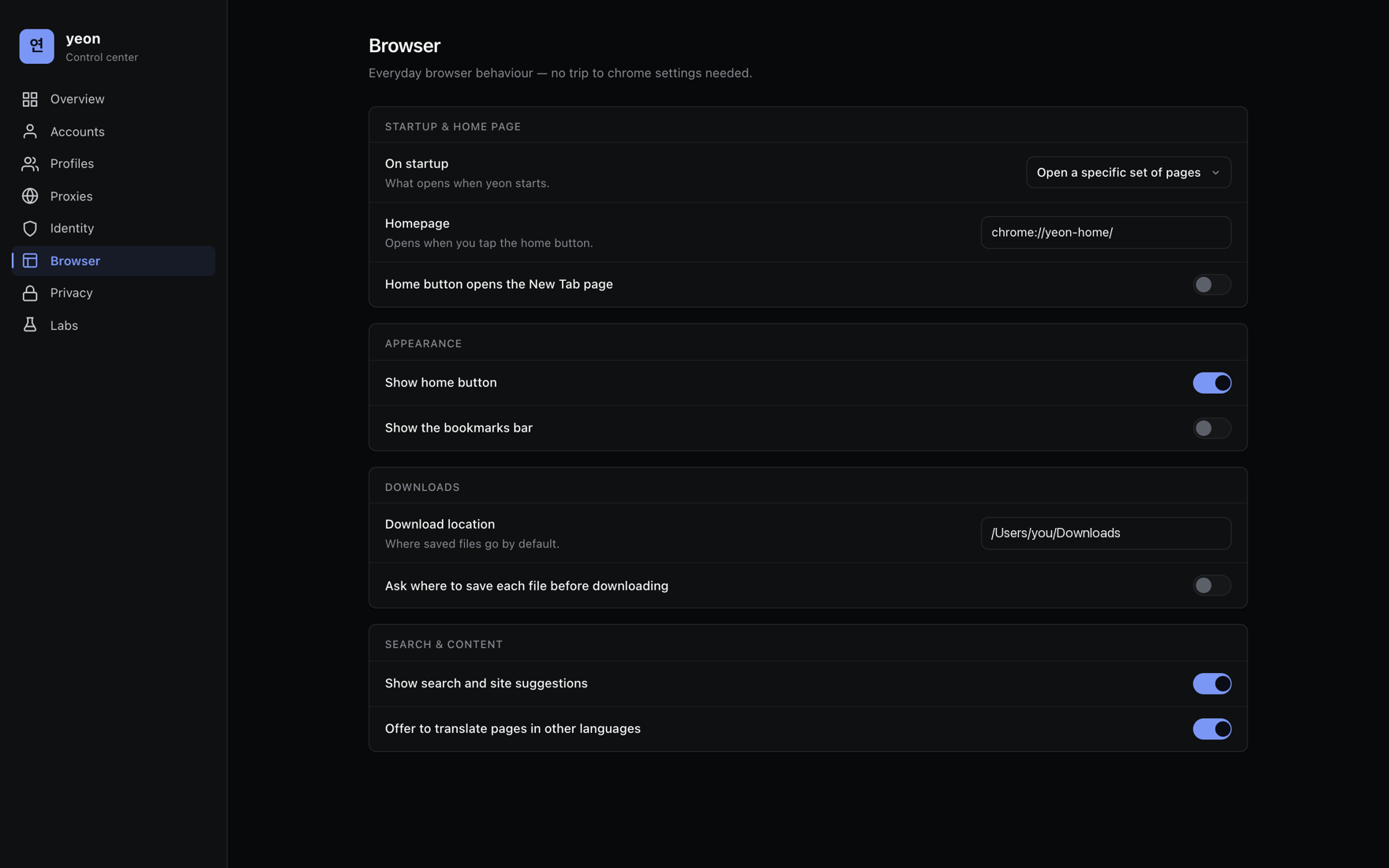
Everyday browser settings — startup and homepage, appearance and the bookmarks bar, downloads,
search suggestions, and more — edited right here instead of in chrome://settings. Settings that
don't apply to your build simply don't show up.
Privacy
Standard privacy controls — Do-Not-Track, and the autofill and password toggles. Deeper surfaces (the full password manager, site permissions) open as a clearly-labelled link into the browser's own settings.
Because yeon's Profiles fully replace the browser's built-in address and payment autofill, opening
chrome://settings/autofill sends you straight to the control center's Profiles section instead.
Related
- Identities & profiles — the identity model the control center manages.
- Online device profiles — the Identity section's headline setting.
- The profile side panel — the in-window companion to this dashboard.
- Proxies & rotation · Importing profiles & accounts.