Custom keybinds
yeon's own keyboard shortcuts are fully rebindable. You can set one to a combination the browser already uses so yours runs instead, and reset anything back to normal in a click.
The default shortcuts
Shortcuts use the platform accelerator, so these keys read Cmd on macOS and Ctrl on Windows — this page follows your platform automatically, and the Windows/macOS switch flips it. Alt is called Alt on both (it is the Option ⌥ key on a Mac).
| What it does | Default shortcut |
|---|---|
| Open a new identity tab (on the next proxy) | CmdCtrlShiftY |
| Open the Profiles launcher (your identity control center) | CmdCtrlShiftE |
| Autofill all fields with this identity's persona | CmdCtrlShiftF |
| Open yeon-sky in a new tab | CmdCtrlShiftK |
| Toggle the vertical tab list | CmdCtrlShiftL |
The Shortcuts page lists every yeon command, not just these — including a few that ship with no key assigned at all, showing Not set and a Set button. Give one a combination and it works like any other.
CmdCtrlShiftE opens the Profiles launcher — the same identity toolkit you use in the side panel.
Looking for the proxy switch? Swapping an identity onto a fresh proxy is a button in the side panel, not a keyboard shortcut — see Proxies & rotation.
Change a shortcut
- Open Settings → yeon → Shortcuts
Open yeon's menu and choose Settings, click yeon in the sidebar, then open Shortcuts — or paste
chrome://settings/yeon/shortcutsinto the address bar. - Edit the one you want
Click Edit next to a shortcut. It starts listening for your new combination.
- Press your new combination
A shortcut needs a modifier (Cmd, Shift, or Alt) or a function key — a plain single letter will not be accepted, so it cannot swallow your normal typing. While yeon is listening, pressing a combination the browser normally uses captures it for your shortcut instead of triggering the browser's own action.
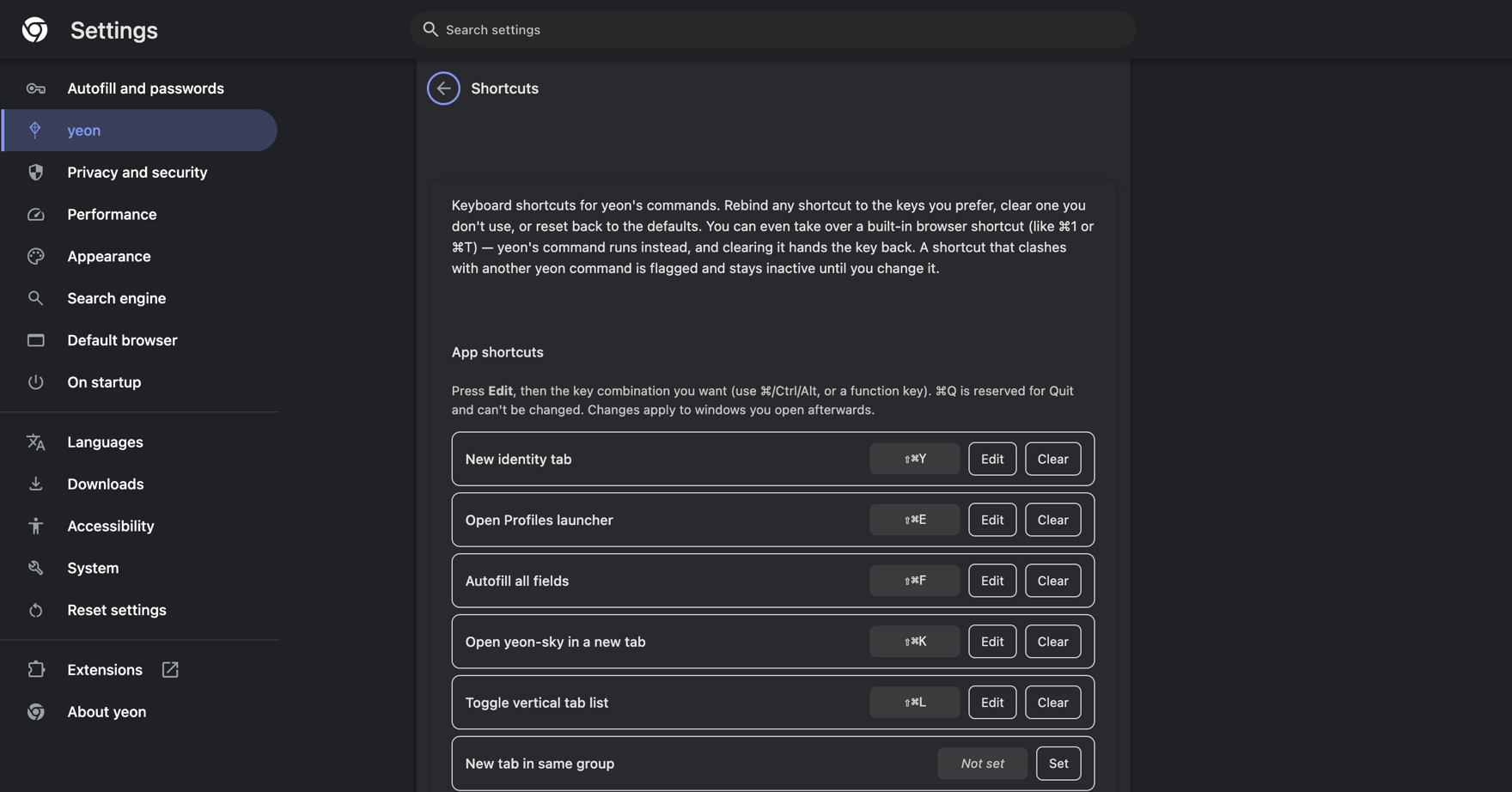
Pick a combination the browser already uses — like CmdCtrl1, CmdCtrlT, or CmdCtrlL — and yeon's action runs instead of the built-in. The row tells you it is overriding that built-in. Clear the shortcut and the key goes straight back to the browser — no restart needed. Two combinations are always off-limits: CmdCtrlQ and CmdCtrlShiftQ quit yeon and can never be taken. If you pick a combination already used by another yeon shortcut, yeon declines it — pick a different one and the warning clears.
Clear or reset
- Clear removes a shortcut entirely, so that action has no key until you set one again.
- Reset puts a single shortcut back to its default, and Reset all returns every shortcut to how it shipped.
When your change takes effect
A saved binding applies to windows you open afterwards. If a shortcut does not respond right away, open a fresh window.
Taking over a built-in combination works immediately — the very next press runs your shortcut. A brand-new shortcut on an unused combination applies to windows you open after you save it, so if it does not respond right away, open a fresh window.
Related
- Persona autofill — what CmdCtrlShiftF fills, and how to set it up. The row is listed as Autofill all fields, and you rebind it like the rest.
- Proxies & rotation — the side-panel proxy-switch button.
- Identities & profiles — new identity tabs and accounts.
- The profile side panel — what the launcher shortcut opens.
- Troubleshooting — if a shortcut does not respond.