The profile side panel
The side panel sits on the side of the yeon window and always shows the controls for whatever identity you are currently looking at — its autofill details, its sign-in code, its proxy — plus the launcher for opening your saved personas.
Opening it
Click the Profiles button in the toolbar, or press CmdCtrlShiftE, to open or close the side panel. It stays open as you move between tabs and pages.
It follows the tab you are on
The side panel is context-aware: it watches which tab is in front and switches view automatically — you never pick a view by hand.
- On a new-tab page, it shows the launcher — your list of personas and the tools to open them.
- On a real website, it shows that tab's identity toolkit — the active identity's autofill fields, sign-in code, and proxy controls.
On a website: the active identity's toolkit
Inside an identity, the panel targets that identity. At the top it shows the identity's color dot and name, so you always know whose session you are in.
Copyable details
A Details card lists the identity's autofill information, each on its own row with a Copy button:
- Name, Email, Phone
- Address 1, Address 2, City, State, Zip, Country
A Copy all button at the top of the card copies every filled-in field at once, as tidy
Label: value lines you can paste anywhere. If a persona has payment details, a separate
Card card shows Name on card, Number, Expiry, and CVV the same way.
The side panel is for copying a value into an odd field by hand. To fill a whole form at once, use the CmdCtrlShiftF hotkey instead — see Persona autofill.
Sign-in code
A Sign-in code card shows the one-time passcode for the active identity as soon as it arrives, with a Copy button. While it waits it reads "Waiting for a code…"; when the code lands the card lights up and says "Code ready — tap Copy." You can also tell yeon where each identity's code should come from (email or SMS) right here. Full details are on OTP autofill.
Proxy
A Proxy card shows the identity's current exit (as host:port, or "(no proxy)") and a
Switch button that rotates it to a new one without disturbing your session. Everything about
switching is on Proxies & rotation.
If you open the panel on an ordinary tab that is not part of an identity, it simply says the tab is not bound to a persona and hides the identity cards. Open a persona, or a link inside one, to see the toolkit.
On a new tab: the launcher
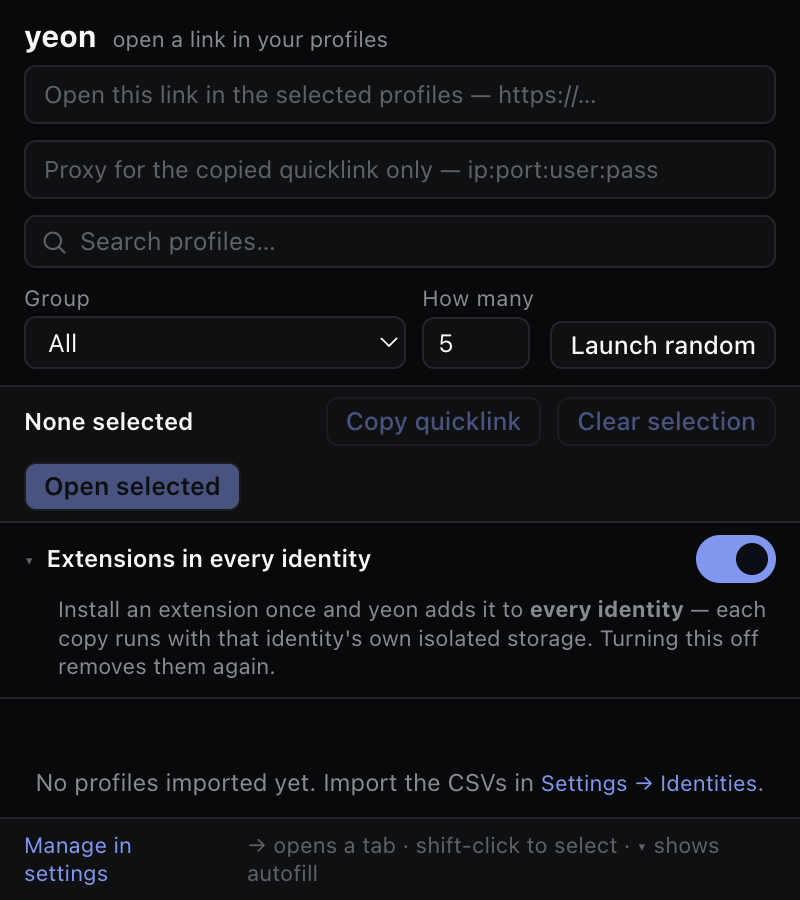
On a new-tab page the panel becomes the launcher — a fast way to open your saved personas, one at a time or in bulk.
- Your persona list. Each row shows a color dot, the persona name, its account count and group, a saved badge if it has a session on disk, and a lock glyph if any of its accounts has a locked proxy. Click a row to open that persona.
- Open a link across profiles. Paste a URL into the box at the top, then click a persona to open that exact page inside it. Tick several personas first — CmdCtrl-click to toggle, Shift-click for a range — and use Open in N selected profiles to open the link in each one, every one in its own identity.
- Launch random. Set a number and click Launch random to open that many random personas at once.
- Group filter. Use the Group dropdown to narrow the list to one proxy group; the random launch respects it too.
Side panel vs. the toolbar icons
The two toolbar icons next to the address bar are much smaller surfaces — don't confuse them with the panel:
- The side panel
- The full panel described on this page. It reads each identity's details straight from the browser — copy fields, fetch the sign-in code, switch the proxy, and launch personas all live here.
- The yeon toolkit icon
- A tiny popup with a single Settings → link. It opens the toolkit's settings page, where you configure queue capture, the cart assistant, and rendering privacy. There are no controls in the popup itself.
- The cookie manager icon
- Opens the cookie manager for the tab you are on — inspect, edit, import, or export that identity's cookies.
Related
Identities & profiles · Persona autofill · OTP autofill · Proxies & rotation · The control center